
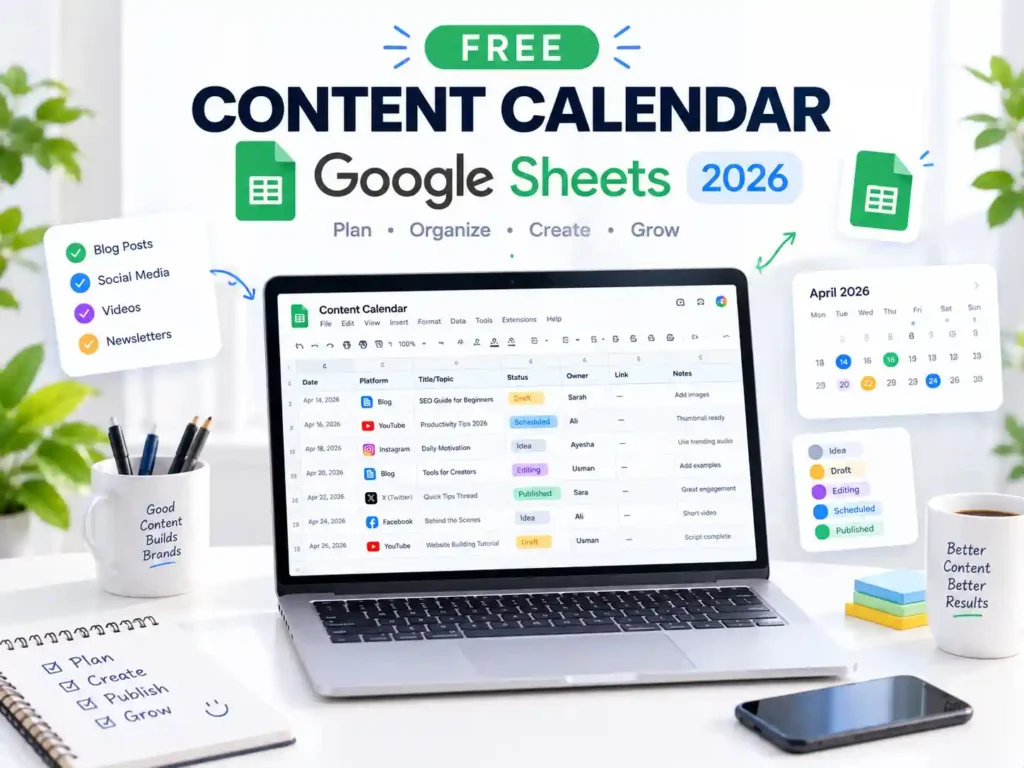

A simple content calendar template Google Sheets, no app to install, no account to create.
Use this simple structure, it takes only about five minutes to build.
You don’t need to request access to a locked template. Instead, you can build this simple, no-frills calendar yourself in about ten minutes and customize it to fit your workflow.
Why Google Sheets Still Works for This
Dedicated tools require logins, onboarding and cost money. A spreadsheet can handle the basics most creators need, and you probably already have access to Google Sheets.
A content calendar template Google Sheets setup works especially well for creators who need a simple view of publishing dates, assignments, and deadlines without paying for another productivity tool.
Many content creators do not need automation. They need a simple view into their due dates and a breakdown of assignments.
- No new app or workspace to learn
- Quality of work can be shared with one click
- Easy to learn how to customize with basic column understanding

The Template Structure
Seven columns cover most content workflows without turning into a mess.
| Column | Purpose |
|---|---|
| Date | Publish date |
| Platform | Blog, Instagram, YouTube, etc. |
| Title/Topic | Working title or content idea |
| Status | Idea, Draft, Editing, Scheduled, Published |
| Owner | Who’s writing or producing it |
| Link | Draft doc or published URL |
| Notes | Anything that doesn’t fit elsewhere |
Create a status column colored with conditional formatting. Things that have been in the Draft status for too long will stand out.
Along the top of the whole sheet, create a filter view. Each individual can then hide all of their rows without disturbing anyone else’s view.
How to Make a Content Calendar template Google Sheets
If you’re building a content calendar template Google Sheets from scratch, start with the seven columns above and then add only the features you actually need.

- Open a new blank Google Sheet
- Add the headers listed above to this blank sheet
- Go to View > Freeze > 1 row to keep the header visible while scrolling. to allow header row visibility with scrolling
- Use the Data Validation feature to create a drop-down menu for Status. This will help minimize typing the same thing multiple times
- Create a separate tab for each month of the calendar if it runs over a page
- Share for editing
Once your Google Sheets content calendar is ready, you can start adding upcoming blog posts, social media content, videos, and other publishing tasks.
Try to curb the temptation to add extra columns at the start. Give yourself two weeks with the original seven and add only what you feel is a true necessity.
Editorial Calendar vs Content Calendar: Is There a Difference?
Not too much of a difference. Editorial calendar is more so used for a publishing schedule for blogs or news articles, whereas content calendar is more so used for publishing social posts, videos, and emails.
Whether you call it an editorial calendar or a content calendar, this content calendar template Google Sheets structure can work for both.
Use whichever term your team uses more of. The template I posted works for both.
It’s common to search one term and see the other. Search engines think the terms are close enough synonyms to think either answer is correct.
Content Calendar Mistakes to Avoid
- Planning three months out with no room to react to what’s actually performing
- Adding too many columns. If updating the calendar takes longer than planning the content, the spreadsheet has become too complicated.
- Keeping the calendar accessible to only one person. Everyone responsible for content should be able to see the relevant assignments and deadlines.
- All content belongs to its respective owner.

If you’re managing this calendar alongside other tools, see what changed in productivity apps in 2026.
When to Upgrade from a Spreadsheet
Spreadsheets work well for one person and small teams. As more people start editing the same calendar, however, things can become harder to manage.

- Three or more people editing the same sheet at the same time
- You need something more than just a status tracking column
- Information is stored in more than three or four spots
If the situation hits this point, something like Notion or Airtable becomes a better choice. Earlier than this point, though, a spreadsheet is perfectly fine.
Even after teams decide to upgrade, a spreadsheet is usually kept as an export so that it is easier to access information when needed.
Final Thoughts
If you’re just getting started, this Google Sheets content calendar template is enough to organize your publishing workflow without adding unnecessary complexity.
A smart content calendar is only as good as how much it gets updated. In this case,For most solo creators and small teams, a simple spreadsheet that is easy to update can be more useful than a complicated tool they rarely maintain.
To start, use the seven given columns. Add complexity to it in the future if and when needed.
What does your content calendar currently look like? Share also any other calendar layouts that you personally prefer that may even help others.
FAQ
Is there a free content calendar template Google Sheets?
Yes. This content calendar template Google Sheets layout uses seven simple columns: date, platform, topic, status, owner, link, and notes. It is enough for most solo creators and small teams that don’t need a paid content-management tool.
How do I make a content calendar spreadsheet from scratch?
To start, you can put your column headers and freeze your first row; then add a Status dropdown with Data Validation. To avoid your calendar looking messy, you can add a new tab for each month.



This is a really helpful guide for anyone looking to organize their content more effectively. I especially like the practical Google Sheets tips, such as using status dropdowns and separate tabs for each month. Simple, useful, and easy to follow!
Pingback: Content Creator Invoice Template (Free, 2026) - creatafy
Pingback: 10 Best Types of Content Marketing (And When to Use Each) - creatafy